
Password Protect PDF
Protect PDF tool can easily secure your PDF files with passwords, encryption, and watermarks, to keep your documents safe
How to password-protect a PDF
Add an opening password to a new copy of your PDF.
- Choose the PDF you want to protect.
- Enter a password from 4 to 128 characters and keep it somewhere safe.
- Select Convert file, download the PDF and test it with the password.
How to Use the Protect PDF Tool?
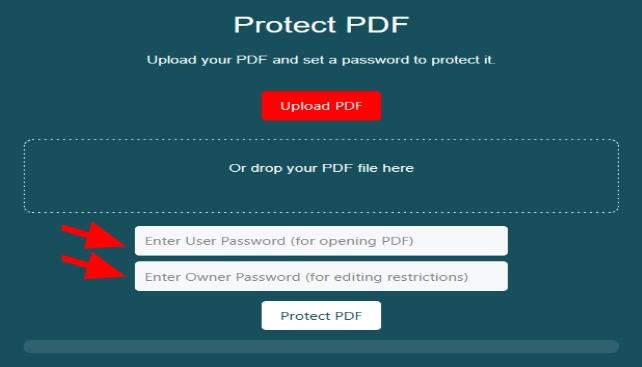
- Upload the PDF file using a button or by dropping the file with the drag & drop method.
- Set a user password that will be used to open the PDF file.
- Now, also set an “Owner Password” that will be the access key to edit the PDF file.
- After setting the password in both boxes, use the “Protect PDF” button.
- A file with password protection will be automatically downloaded.
PDF Protect
This is a free PDF tool. It allows you to add a password to prevent others from opening the file. You can also control who can view, copy, or print the document. The tool lets you add watermarks to protect your content and encrypts the file for extra security. You can also remove metadata to keep your information private. PDF Protect is easy to use and perfect for securing both personal and business documents. It helps ensure that only the right people can access your PDFs.
Key Features
This tool works online and offers amazing features with high protection levels for your PDF documents.
Password Protection
Password Protect PDF tool lets you add a password to your PDF. This makes sure only people with the password can open and view the document. You can choose a strong password to keep your file safe. It’s perfect for sharing sensitive information, like contracts or personal details.
Set Permissions and Restrictions
This tool allows you to protect your documents with two different passwords. You can set one password that is key to open the PDF file. While the second is the Owner password and without this password, no one can edit this PDF file.
Encrypt PDF Files
The tool also lets you encrypt your PDF. You can protect your data and sensitive information in PDF files using this online free tool.
Watermarking for Extra Protection
You can add a watermark to your PDF to further protect it. The Protect PDF tool lets you place a custom watermark, like text or a logo, on your document. This discourages people from copying or sharing your document without permission.
Remove Metadata for Privacy
PDFs often contain hidden information, called metadata, about the file’s creation or editing history. This tool helps you remove that metadata to protect your privacy. By doing so, no one can see hidden details about the file when sharing it online.
Digital Signature Integration
A digital signature proves the document is authentic and hasn’t been changed. This is helpful for legal documents and other documents where you have to protect the legitimate rights of the document.
User-Friendly Interface
It is easy to use. Users just need to provide the PDF file using a button or drop-down method and set a password to open the file. It also gives the option to set an owner password that restricts others from editing this file. Moreover, the download process for the protected file is automatic with the one-click button.
Common questions and quick fixes
What does the PDF password protect?
The password is required to open the output PDF. This tool does not provide separate controls that block all printing, copying or editing.
Can you recover the password if I forget it?
The tool does not provide password recovery. Keep the password safely and retain your original file if you need an unprotected copy later.
Why is my PDF password rejected?
Use 4 to 128 characters without line breaks or control characters. Check the entry before conversion so you can type the same password when opening the result.
How should I share a password-protected PDF?
Download and test the file first. Give the password to the intended recipient through a separate channel from the document.
Helpful tip: Use a strong, unique password that is hard to guess. Avoid a name or a short common word.